Design Craft: Cut Files, Fonts
One Music PlayerArt & Design
4.239.00 Reviews
- Version
- 1.2.21
- Installs
- 50.00K
- Age Rating
- Everyone
Screenshots
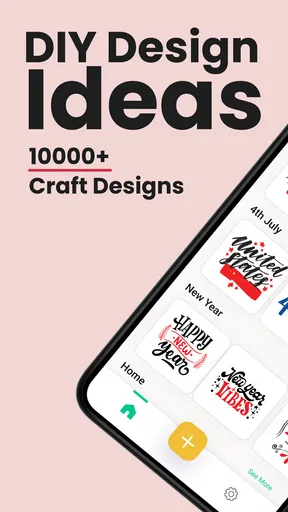
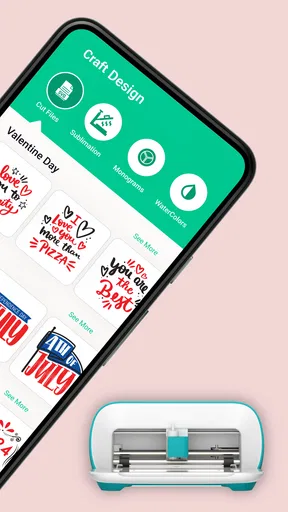
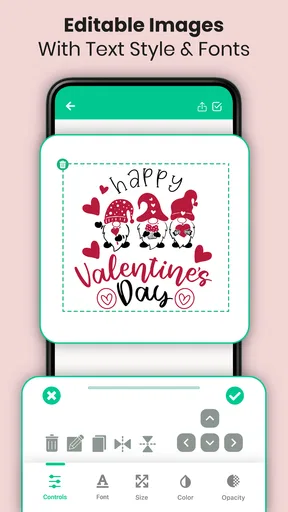
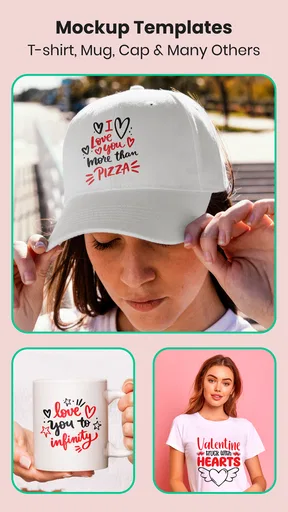
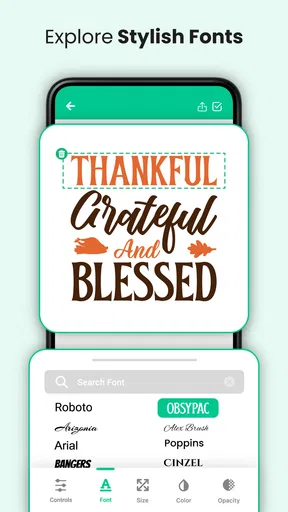
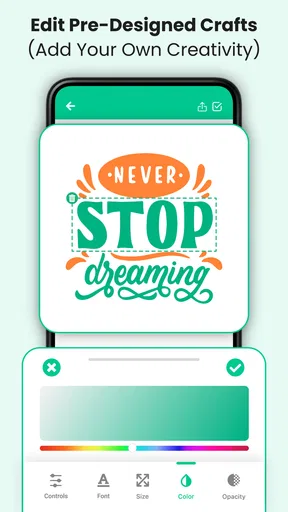
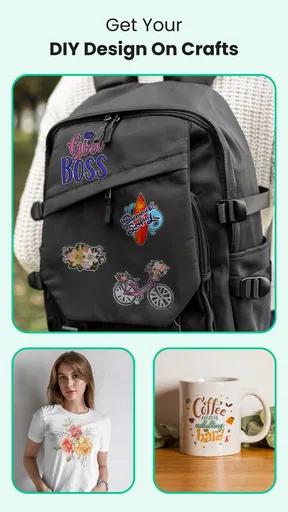
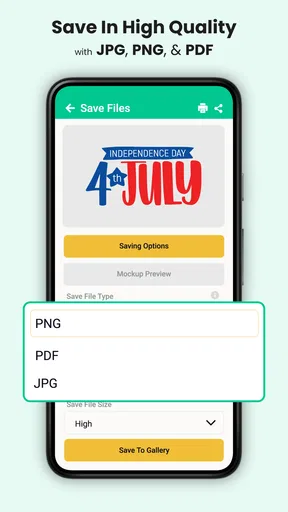
Our Review of Design Craft: Cut Files, Fonts
 Analysis by Appyee
I approached Design Craft: Cut Files, Fonts as a practical art and design tool rather than as a simple collection of decorative images. Its focus is helping me prepare ideas for DIY projects, especially when I want a monogram, graphic, or font that can move from a phone screen into a cut-machine workflow. That distinction matters: I found it more useful for choosing and adapting a starting point than for replacing a full desktop design studio.
The app is free to install, carries an Everyone age rating, and comes from One Music Player. It sits in the art and design category, where the most important question is not whether it has a long feature list, but whether I can quickly find something usable and understand what I am looking at. In my experience, its appeal comes from reducing the blank-page problem. Instead of drawing every letter or ornament from scratch, I can begin with a ready-made visual direction and then decide how much personal adjustment the project needs.
That makes it an interesting choice for crafters, casual designers, teachers preparing simple visual activities, and anyone who wants to experiment with lettering without committing to a complicated subscription-based design suite. It is less convincing for a professional who needs precise production controls, advanced typography management, or a carefully documented export pipeline.
How the design library feels to use
I find a design library most useful when I browse with the finished object in mind, rather than treating the choices as inspiration without a destination. For a small label, I’d look for clear letter shapes; for a keepsake, I’d allow more ornament. That simple distinction helps me narrow the options and sets up the practical question of how to judge a design before committing to it.
Readability and navigation come first
The first thing I pay attention to in an app like this is whether browsing feels calm or chaotic. A large library can be helpful, but only if I can distinguish one style from another without opening every item. Design Craft is built around a browsing experience, so the quality of the visual previews matters as much as the number of available choices. When I am looking for a family monogram, a seasonal label, or a decorative word, I want the shape to communicate its purpose before I spend time editing it.
I found the concept easy to understand: choose a design direction, inspect the lettering or graphic treatment, and consider how it might work on a physical project. That is friendlier than opening a blank canvas and facing a long list of technical controls. For a beginner, this reduces the intimidation that often comes with design software. I can explore ideas first and worry about refinement later.
The app’s store summary points to more than five thousand monograms, graphics, and fonts. I treat that scale as a source of variety, not as a promise that every item will suit my taste. A large collection inevitably includes styles that feel too ornate, too narrow, or difficult to cut cleanly. My practical advice is to judge each design at the size and material you expect to use, rather than choosing only because it looks impressive in a thumbnail.
That is one of the less obvious decisions involved in using a library like this: the prettiest preview is not always the most practical file. Thin gaps, tightly packed letters, and tiny interior details may look excellent on a bright screen but become frustrating when transferred to vinyl, paper, or another craft material. I would shortlist several alternatives and compare their shapes before settling on one.
Finding a style without losing time
For a quick project, I would begin with the intended object instead of browsing randomly. A name for a gift, a label for storage, and a decorative sign each need different visual behavior. A monogram with strong separation between letters is usually easier to read at a glance, while a highly connected script may be better when the design itself is meant to feel ornamental.
I also recommend checking the full word, not just an attractive sample letter. Fonts can change character considerably when several letters sit together. A capital may look balanced on its own but create an awkward join beside a rounded lowercase letter. This is especially important for names, where an unexpected combination can make the finished piece look less polished.
The straightforward presentation is useful for people who prefer visual learning. I do not need to understand typography terminology before I can recognize a suitable option. At the same time, someone with low vision may find a dense gallery more demanding if previews are small or if similar designs are not clearly separated. I would use the phone’s own display enlargement tools where available and inspect promising choices one at a time instead of relying on rapid scrolling.
That approach also helps users who become overwhelmed by too many choices. Rather than trying to evaluate the whole library, I would define three requirements first: the words or initials, the approximate physical size, and whether the design needs to be easy to weed or cut. Those limits make the browsing process more manageable and produce better results than selecting a style purely by mood.
What the free starting point means
The app is free, which makes it approachable for a first experiment or an occasional craft project. It also includes in-app purchases ranging from $0.99 to $99.99 per item. I would therefore treat the free installation as an opportunity to explore the workflow, not as a guarantee that every desirable asset or option will be available without an additional purchase.
That distinction is important for planning. If I were preparing a large batch of personalized gifts, I would first confirm that the designs I need fit within my intended spending before building the entire project around them. For a single trial, the low barrier to entry is attractive. For repeated professional use, the upper end of the purchase range makes it worth comparing the total cost with a design service or an alternative tool that uses a different payment model.
The app has a 4.2 average from around two hundred ratings, with dozens of written reviews, and it has passed fifty thousand installs. Those figures suggest a real user base and a generally positive reception, but I would still make my decision based on the workflow rather than the rating alone. A person who wants quick inspiration may be very satisfied, while someone expecting a complete production environment may judge it more strictly.
Motor and sensory considerations during design work
For users with limited fine-motor control, the biggest advantage of a template-based approach is that it can reduce the amount of precise drawing required. Choosing a prepared monogram or font is less demanding than tracing every curve with a finger. I also prefer workflows that let me pause between decisions, because rushed dragging and repeated tiny adjustments can make a simple project tiring.
There is a trade-off, though. Touchscreen design still depends on accurate taps, swipes, and visual confirmation. If controls are close together or a preview requires delicate manipulation, users with tremors, reduced dexterity, or hand fatigue may need more time. I would work on a stable surface, use a larger device when possible, and avoid making final choices while holding the phone in one hand.
People who are sensitive to visual clutter may appreciate a focused project routine: browse briefly, save a small shortlist mentally or elsewhere, then return to editing only the chosen direction. A huge gallery can become tiring when every screen presents another set of decorative possibilities. I found that limiting the session to one project goal made the app feel more useful and less like an endless catalog.
For color-sensitive users, the physical result deserves extra attention. A design that appears clear against the app’s preview background may behave differently on dark fabric, textured paper, or reflective material. I would test contrast with the actual base material before committing to a large cut. This is not a special feature of the app; it is a practical safeguard when screen previews are being used to make physical design decisions.
Users who rely on screen readers or other assistive technologies should judge the app through their own device setup before depending on it for an important project. The visual nature of the library may make image-based browsing more central than text-based navigation. I would not assume that a decorative preview communicates its style adequately without visual access, and I would keep a second, more text-oriented design tool available if spoken labels and structured controls are essential to the workflow.
Situational access: where it fits naturally
I can imagine using Design Craft at a kitchen table while planning a birthday label, on a sofa while choosing initials for a handmade present, or beside a cutting machine while comparing a few visual directions. Its mobile format suits those moments because I do not need to sit at a desk just to collect ideas. The app is particularly convenient when inspiration arrives away from a computer and I want to make progress immediately.
A realistic example would be preparing matching name decals for storage boxes. I would choose a readable font, check whether each name has comfortable spacing, and compare the longest name with the shortest one before committing. The goal would not be to make every label identical in visual weight by accident; it would be to make the set look consistent even when the letter combinations differ. That kind of advance check can prevent wasted material and time.
It can also help a beginner who has been asked to make a personalized gift but does not know where to start. Instead of searching general image websites and trying to determine whether a graphic is suitable for cutting, I can begin with designs made for a craft-oriented context. I would still verify the final handling in my own cutting software or equipment, but the initial idea search is more focused.
For classroom or group activities, the app could be useful as a visual prompt. I might show students several lettering approaches and ask them to compare which one is easiest to read, which one feels formal, and which one would be practical on a small object. The value there is not only the finished design; it is the conversation about shape, spacing, and audience.
Situational access also includes the moments when the app is not convenient. If I am offline, working under intense time pressure, or moving between several production steps, depending on a browsing-heavy tool may slow me down. I would prepare a shortlist before the actual cutting session rather than assuming I can make every decision at the machine.
Where it differs from usual alternatives
Compared with a general drawing app, Design Craft gives me a more immediate starting point for monograms, fonts, and decorative craft graphics. A blank drawing canvas offers greater freedom, but it also asks me to create the visual system myself. For a quick personalized project, I would rather begin with a purposeful template than spend the first half hour deciding how to construct a letterform.
Compared with a full desktop design suite, this app feels lighter and more idea-led. Professional software is usually the better choice when I need exact measurements, layered editing, detailed path cleanup, repeatable production settings, or dependable control over a complex design. Design Craft is more appealing when the main obstacle is finding a pleasing concept quickly.
Compared with searching the web for free graphics, a dedicated craft library can save time by keeping the browsing context narrower. The trade-off is that a web search may provide a wider mix of styles and file sources, while an app library may lead me toward a particular visual language. I would choose this app for convenience and inspiration, then move to another tool when the project demands technical precision.
The developer is One Music Player, and the current version is 1.2.21. It supports devices running Android 7.0 or later, so owners of older Android hardware should check compatibility before planning around it. That requirement is modest by current standards, but it still matters if the app is being considered for a spare tablet or an older family phone used for crafting.
Remaining barriers and practical workarounds
The largest barrier is the difference between visual inspiration and production certainty. A design can look finished inside the app while still needing preparation for the user’s particular cut machine, material, blade, or software. I would not assume that selecting an attractive asset automatically solves sizing, spacing, mirroring, layering, or weeding decisions. Those steps remain part of the craft process.
Another barrier is choice overload. A collection of thousands of assets sounds generous, but variety can make it harder to settle on one direction. My workaround is to create a simple decision rule: reject anything that is hard to read at the intended size, reject anything with details the material cannot hold, and then choose from the remaining styles based on the recipient or setting.
Cost can become a barrier for users who expect a completely free library. Because individual in-app purchases may reach $99.99, I would inspect the purchase prompt carefully and avoid assuming that a preview represents an unrestricted final asset. This is especially important for children, shared devices, and family accounts. The Everyone rating describes the age suitability, not the spending decision, so adults should still supervise purchases.
There is also a learning barrier for people unfamiliar with cut-machine terminology. Even a beautiful font may be unsuitable if its narrow strokes or enclosed spaces are difficult to handle. I would begin with a simple, bold design and make a small test cut before using expensive material. That workflow teaches more than selecting the most elaborate example first.
For users with accessibility needs, I would treat the app as one part of a wider setup. Increase device text or display size if that improves browsing, use a stand to reduce hand strain, and keep project notes in a format that is comfortable to read. If visual previews are not enough for a particular user, a companion tool with stronger text descriptions or more explicit accessibility support may be the better primary option.
Who should use it and who should skip it
I would recommend Design Craft to someone who wants a fast source of monograms, fonts, and graphics for personal DIY work. It is a sensible starting point for beginners, gift makers, occasional crafters, and users who prefer choosing from visual examples instead of building every design from a blank page. It is also useful when I need to turn a vague idea into a concrete shortlist quickly.
I would be more cautious about recommending it as the only tool for a small business with strict brand requirements. If every design must match an established identity, export cleanly through a documented process, and remain easy to revise months later, a dedicated design application may be a safer foundation. The same applies to users who want advanced vector editing rather than curated inspiration.
People who dislike in-app purchases should explore the free experience carefully before investing time in a complete project. The app may still be worthwhile as an idea source, but the purchase structure means that “free” should be understood as a low-risk entry point rather than an unlimited design catalog.
My inclusive verdict
After looking at it through the lens of different abilities and everyday contexts, I see Design Craft as an approachable visual starting point with useful craft-specific direction. Its strongest quality is not that it eliminates every technical step; it is that it helps me get past the blank canvas and think in terms of a real object, a real recipient, and a real cutting task.
My main recommendation is to use it for discovery, then test the chosen design at its intended size and material before treating it as production-ready. That single habit addresses several common frustrations at once: poor readability, fragile details, awkward spacing, and wasted supplies.
The app is free, suitable for Everyone, and supported on Android 7.0 or newer. One Music Player has positioned it as a practical design companion rather than a replacement for every other tool in the workflow. I think that is the right way to approach it. Use it when you want accessible visual inspiration and a quicker route to personalized craft ideas; choose a more advanced alternative when exact control, robust accessibility tools, or predictable professional production matters more than browsing convenience.
For me, the final decision is straightforward: I would keep it available for quick monogram and lettering projects, especially when working from a phone or tablet. I would not rely on it alone for complex commercial work. Its value depends on matching the tool to the situation, and in that role it can make DIY design feel less intimidating without pretending that the rest of the craft process disappears.
Verdict
Strengths of Design Craft: Cut Files, Fonts
- Large library of cut files, fonts, and ready-to-use craft designs.
- Useful search and category tools make finding projects straightforward.
- Works well for personalized gifts, labels, cards, and home decorations.
- Designs can inspire beginners who need quick project ideas.
- Supports creative workflows for popular cutting-machine projects.
Limitations of Design Craft: Cut Files, Fonts
- Some premium designs and fonts may require in-app purchases.
- File compatibility can vary depending on the cutting machine or software.
- The large catalog may feel overwhelming without precise search terms.
- Certain designs may need editing before cutting to avoid intricate details.
- A stable internet connection may be needed to browse or download content.
Other Releases by One Music Player
View All
Universal Tv Remote-Cast to TV
House & Home4.1

HD Camera for Android
Beauty4.5

Smart Watch - Clock Wallpaper
Personalization4.6

AirTag Scan: Bluetooth Tracker
Tools4.5
Similar Picks in This Category
View All
Canva: AI Photo & Video Editor
Canva4.8

PENUP – Drawing-sharing SNS
Samsung Electronics Co., Ltd.4.5

Crafto
Kutumb App4.6

Sketchbook
Sketchbook4.1

ibis Paint X
ibis inc.4.5

Adobe Express: AI Photo, Video
Adobe4.6
Frequently Asked Questions
What is Design Craft: Cut Files, Fonts used for?
Design Craft: Cut Files, Fonts is a creative design app aimed at users who make personalized crafts, digital artwork, stickers, invitations, apparel graphics, and other projects. It provides access to design resources such as cut files, decorative elements, and fonts that can be combined and customized for different creative ideas. It may be especially useful for people working with cutting machines or preparing designs for print and digital sharing.
Does Design Craft: Cut Files, Fonts work with Cricut, Silhouette, and other cutting machines?
The app is designed around craft projects and commonly used cutting-file workflows, but compatibility can depend on the file format offered and the specific cutting machine or companion software. Before downloading a design, check whether it can be exported in a format supported by your setup, such as SVG, PNG, or another compatible file type. You may still need to transfer the file to Cricut Design Space, Silhouette Studio, or similar software.
Are the fonts and cut files free to use?
Design Craft: Cut Files, Fonts may include a mixture of free resources and content that requires payment, a subscription, or an in-app purchase. Availability and licensing can vary between individual files and fonts, so users should read the terms shown before downloading or using an asset commercially. Personal-use permission does not automatically mean that a design can be used on products for sale, branding, or client work.
Can I customize the designs and fonts inside the app?
The app is intended to help users explore and prepare creative assets, but the exact editing tools can vary depending on the resource. Some items may be adjustable, while more advanced changes—such as welding letters, creating layers, removing backgrounds, or preparing precise cut lines—may require external design or cutting software. Test a small project first to understand which editing functions are available on your device.
Is Design Craft: Cut Files, Fonts suitable for beginners?
Design Craft: Cut Files, Fonts can be a useful starting point for beginners because ready-made cut files and fonts reduce the need to create every element from scratch. However, new users may still need basic knowledge of file formats, downloads, licensing, and cutting-machine software. If you are completely new to digital crafting, begin with a simple design and confirm the export and printing or cutting process before attempting a larger project.
